| Version 5 (modified by sdanthin, 6 years ago) (diff) |
|---|
Tutorial
Creating a scenario
The following is to be used as an example tutorial for creating a scenario from scratch.
Opening the program
To run the ScriptBuilder? application, download the application from the DownloadPage, and unzip the given folder. The program can be run by opening the command line at this location and (needs windows cross-check) typing {java -jar ScriptBuilder?.jar}
Adding your first Incident to the Scenario
For the first Incident, we're going to add both the Media Log and the Tomato Truck Spill/Fire? incidents. To do this, navigate to the incidents menu, and select the "Load Incident..." option. This should bring up a window similar to the one below:
(Insert Photo)
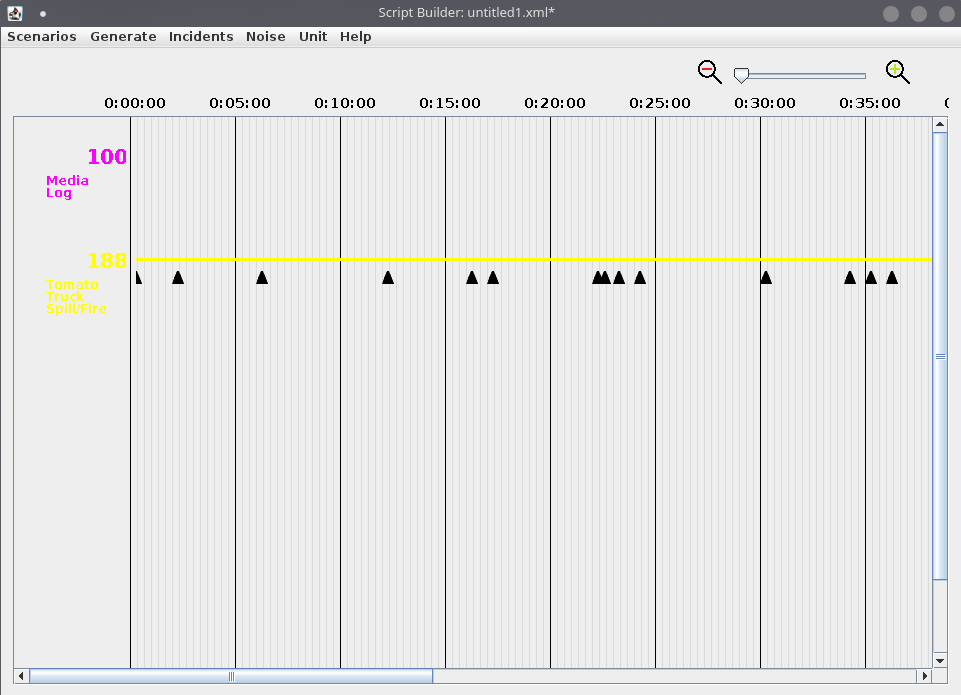
Press the large "Add" button to the right of the incident you would like to add, in this case the Media Log and Tomato Truck Spill/Fire?. When completed, press the "Done" button, which will return you back to the Scenario Overview Window. You should see the two added incidents in the window, as shown below:
(Insert photo of the overview window with both of the events added.)
Take note that the Media Log does not have any tick marks on its timeline, as it does not contain any events. On the other hand, the Tomato Truck Spill/Fire? incident has a long line of tickmarks, which each indicate a time at which an incident occurs (could be more than one).
Modifying the incident properties
To see the properties of the incident, right-click on the timeline and select the properties option as shown below:
(insert photo of dropdown menu)
A window titled "Incident Properties" should open and the property values will be filled with whatever was saved with the incident itself. Change the incident's color by selecting the dropdown menu and selecting "red" instead.
(Insert image of the properties window with the color change)
Upon completion, click "OK" to save the changes, and observe the change in color of the incident in the Scenario Overview Window.
Creating a new incident
Open the incident menu, and select the "New Incident..." option. An Incident Properties window should appear, which will already have the next available incident number filled in, which in this case if 101. Change the color to Yellow, name it "An accident", and set the start time to 10 minutes.
(insert image of incident properties with the correct values as said above)
The Incident Editor window will appear without any incidents. Add a Witness event to the incident timeline by selecting the button names "Witness" and click anywhere to add the event to the timeline. A popup notifying that the event will be added to the beginning of the incident will appear, and after confirming, the event will appear as below:
(add image of the Incident Editor with the Witness event added)
Attachments
-
TWO_EVENT_MAIN_POPULATED.png
 (25.2 KB) -
added by sdanthin 5 years ago.
(25.2 KB) -
added by sdanthin 5 years ago.
-
INCIDENT_PROPERTIES_DROPDOWN.png
(41.0 KB) -
added by sdanthin 5 years ago.
-
INCIDENT_PROPERTIES_COLOR.png
(45.9 KB) -
added by sdanthin 5 years ago.
-
INCIDENT_PROPERTIES_NEW_INCIDENT.png
(32.6 KB) -
added by sdanthin 5 years ago.
-
WITNESS_JOHN_DOE.png
(47.7 KB) -
added by sdanthin 5 years ago.
-
CHP_RADIO_EDITOR_JOHN_DOE.png
(51.3 KB) -
added by sdanthin 5 years ago.
-
INCIDENT_EDITOR_THREE_EVENT.png
(65.0 KB) -
added by sdanthin 5 years ago.
-
TOW_EVENT_DATA.png
(47.8 KB) -
added by sdanthin 5 years ago.
-
INCIDENT_EDITOR_UNIT_SHIFTED.png
(65.4 KB) -
added by sdanthin 5 years ago.
-
INSERT_TIME_INCIDENT_EDITOR.png
(68.1 KB) -
added by sdanthin 5 years ago.
-
UNIT_EVENT_MOVED_BACK.png
(69.3 KB) -
added by sdanthin 5 years ago.