| Version 16 (modified by sdanthin, 6 years ago) (diff) |
|---|
Table of Contents
| Scenario Overview Window |
| Incident Editor Window |
| Event Editor Window |
| Incident Pool Window |
| Units |
The TMC Academy Traffic Management Center Simulator attempts to re-create any and all scenarios that could be played out on a California roadway, in order to train management center personnel to respond to incidents and events occurring on said roadways. This requires the simulator to duplicate, as close as possible, the form and feel of the real working environment, as to well-prepare the students for working in the field. This user manual is directed towards the ScriptBuilder component of the simulator, which is tasked with editing and creating new scenarios for the Simulation Manager to run. In its core, the Simulation Manager uses an XML file to store the scenario that is being simulated. Due to the clumsy nature of XML, editing said file is difficult and tedious. Thus, this application, ScriptBuilder, was created in order to facilitate the editing and creation of scenarios for the Simulation Manager.
A typical scenario script, which is played out by the Simulation Manager over the course of the training, is composed of smaller incidents. These incidents are specified to be an incident that has happened on a roadway, and they are composed of events that make up the incident. These smaller events are representative of the responses that CHP and other response teams will have over the course of the event, and includes instructor evaluations, which are not visible to students, to allow instructors to evaluate the students' performance on the go. This scenario script is usually composed of a few incidents, which are then played at different times, oftentimes overlapping, in order to simulate a real-world traffic environment. Each incident's respective events are simulated at any time, starting from the beginning of the incident to the end of the incident, which is specified by the person building the script. Editing this scenario script in its native xml is difficult, so this ScriptBuilder application was developed in order to facilitate easier editing.
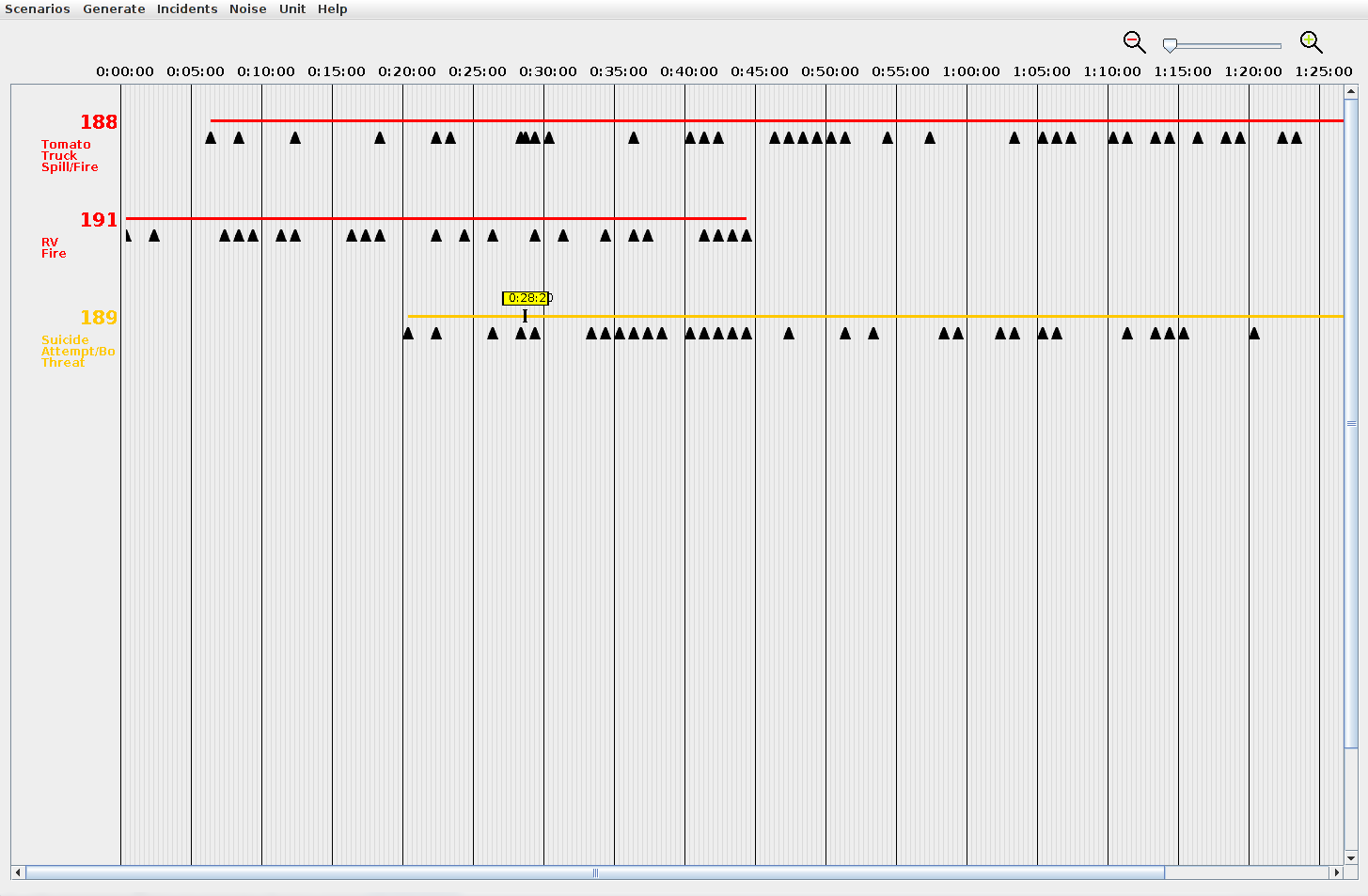
The ScriptBuilder itself is composed of a few major components, each with their own set of features. The script overview window, or the window that is shown at startup of the program, displays the list of incidents that have been added to the overall scenario script, as shown below.

Each one of these incidents is able to be modified through the second major tool in the ScriptBuilder: the incident editor. The incident editor is where a script builder will be able to view their entire incident, add and remove events, and access the contents of said events. An example window of an incident loaded into the incident editor is shown below.

In this window, the event editor window can be opened by clicking on one of the small event icons that is present on the incident timeline. This event editor window contains all of the events at a certain time, and allows the contents of said events to be edited.

Scenario Overview Window
The main window shown at startup of the program is the Scenario Overview Window. This window holds is able to access all of the tools necessary for building, maintaining, and editing a scenario. It also is a helpful tool for viewing the contents of a scenario, as it displays every incident contained within the script, and representative ticks for the events themselves.
Scenario Overview Window Menu Bar

This menu bar accesses all of the different menus that are available to modify the current Scenario.
Scenario

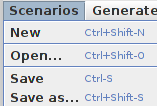
This menu contains tools to open, save, and create scenarios.
| New | Creates a new scenario. If the current scenario is not saved, then a dialog box confirming the creation of a new window will appear. |
| Open | Opens an existing scenario from a selected XML script in the file chooser. |
| Save | Saves the scenario that is currently being edited. If it has not been saved before, the "Save As" menu appears. |
| Save As | Saves the scenario to a specified filename in the file chooser. |
Generate
Not really sure what to put in this section
Incidents

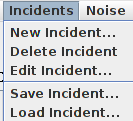
This menu contains tools to create, modify, delete, load, and save individual incidents.
| New Incident... | Adds a new incident to the scenario, bringing up the incident properties window. |
| Edit Incident... | Opens a dialog box with a chooser to select which incident to edit, then opens the incident properties window of that incident. |
| Delete Incident | Opens a dialog box with a chooser to select which incident to edit, and on conformation, deletes the incident. |
| Save Incident... | Opens a dialog box to select which incident to save, and the opens a file chooser to save the singular incident (typically to incident pool) |
| Load Incident... | Opens the incident palette window in order to add pre-fabricated incidents to the scenario. |
Units
This menu contains a tool to optionally load in extra units.
| Load Additional Units... | Opens a file chooser to load in extra units from an external units XML file to be used in the scenario |
Scenario Overview Window Timeline

The main content of the scenario overview window is a timeline that displays all of the incidents that are contained currently in the scenario. It is automatically updated any time an incident or an event within an incident is added to the scenario. This timeline displays events contained at certain times as triangles indicating either one or more events at that time.

Right-clicking on the incident of choice opens up a menu, allowing edits to the incident properties, and the events themselves in the incident to be made.
| Events | Opens the incident editor window, allowing for the incident to be edited. |
| Properties | Opens the incident properties window. |
Incident Editor Window
Event Editor Window
Incident Palette Window
Units
Script Builder tutorial
OUTLINE


Background
  Prerequisites: What the Simulation Manager does.
  How an incident script is structured.
  Major script builder features.

Overview Window

Stage 1|(01/29/20)

Creating a new Incident
  Incident Properties Dialog
  Incident Editor Window
  The Timeline
  Adding the first event

Stage 1.5|(02/05/20)

  Event Editor Window
  Adding more events
  Revising an Event
  Changing an event's time

Stage 2|(02/12/20)

  Modifying an Incident's timeline
        Add time to start or end
        Add or remove time from middle

Saving a Scenario
Opening an existing Scenario

Incident Pool Concept
Loading an Incident from the Incident Pool
Incident Pool Window

Stage 3|(02/19/20)

Saving a single Incident
  This saves WITHOUT units, is that correct? (YES) Explain implication: won't run properly in Sim Mgr.

Loading Additional Units
  How default units are used.
  Why additional units may be needed.

Stage 4|(02/26/20)
Attachments
-
scriptOverviewWindow.png
 (17.0 KB) -
added by sdanthin 6 years ago.
(17.0 KB) -
added by sdanthin 6 years ago.
Image of script overview window with some example incidents placed.
-
incidentEditorOverviewWindow.png
(80.8 KB) -
added by sdanthin 6 years ago.
-
eventEditorOverviewWindow.png
(33.3 KB) -
added by sdanthin 6 years ago.
-
overviewMenuBar.png
(2.3 KB) -
added by sdanthin 6 years ago.
-
overviewTimeline.png
(2.7 KB) -
added by sdanthin 6 years ago.
-
overviewScenarioMenu.png
(5.0 KB) -
added by sdanthin 6 years ago.
-
overviewIncidentMenu.png
(4.1 KB) -
added by sdanthin 6 years ago.
-
overviewUnitMenu.png
(2.2 KB) -
added by sdanthin 6 years ago.
-
overviewRightClickMenu.png
(2.5 KB) -
added by sdanthin 6 years ago.
-
incidentPropertiesWindow.png
(11.5 KB) -
added by sdanthin 6 years ago.