| Version 3 (modified by bmcguffin, 9 years ago) (diff) |
|---|
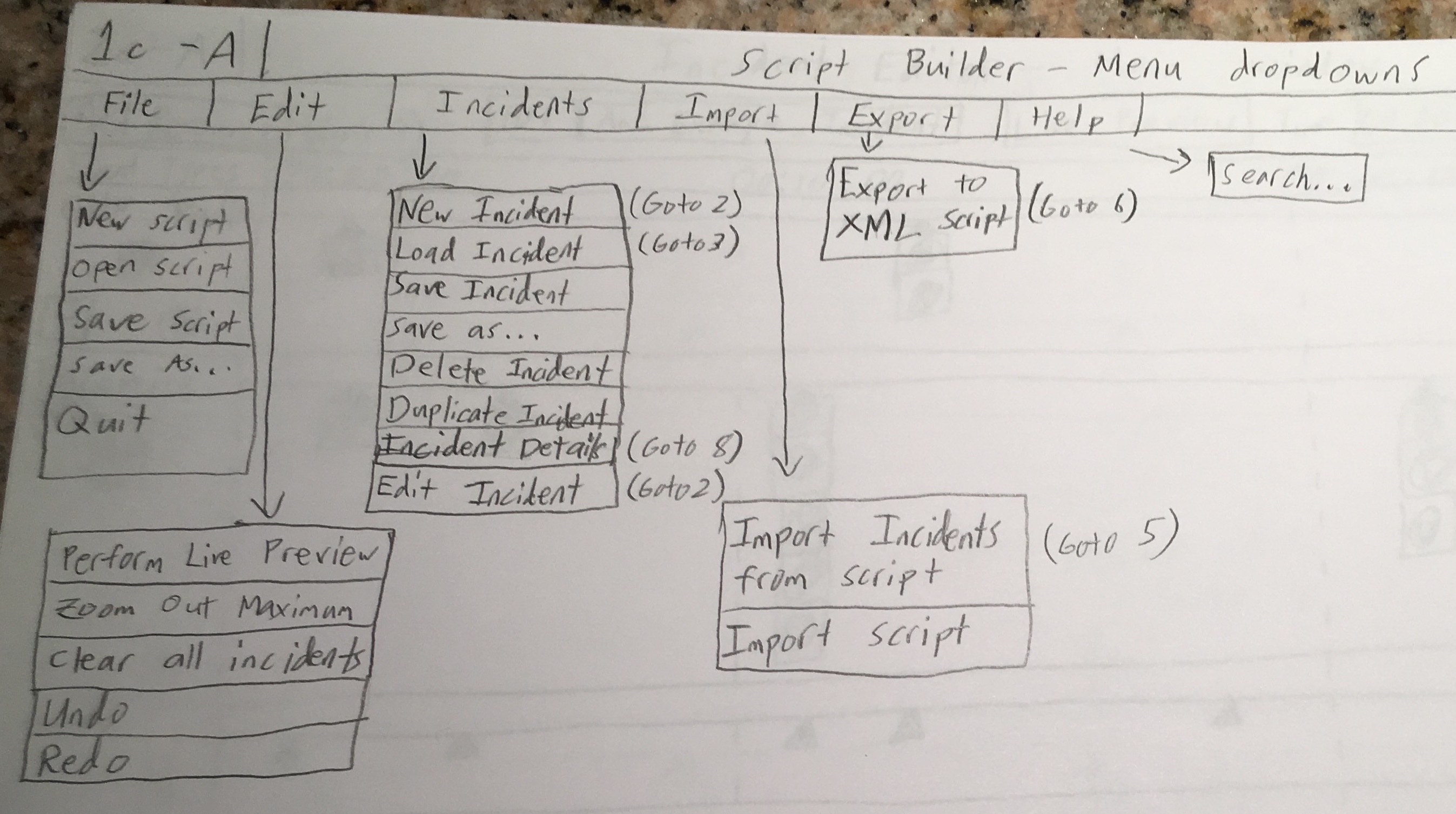
Descriptions of Menu Dropdowns

File
New Script
Opens a blank timeline.
Open Script
Opens a previously saved timeline.
Save Script
Saves the current timeline to a file. (NOTE: Not the same as “export.” The save file is not necessarily an XML file.)
Save As
Saves the current timeline to a new file with a new name.
Quit
Terminates the program.
Edit (NOTE: This dropdown and its actions may be unnecessary)
Perform Live Preview
Activates Live Preview mode; events on the timeline will give notification in real time that they are occurring.
Zoom Out Maximum
Sets zoom slider to furthest out setting.
Clear All Incidents
Deletes all incidents from timeline.
Undo
Undoes the last undo-able action.
Redo
Redoes the most recently undone action.
Incidents
New Incident
Generates new incident starting at 00:00:00. Incident color is random; incident number is the next lowest available number. Incident Editor Window (2a) becomes visible.
Load Incident
Incident Selection Palette (3a) becomes visible.
Save Incident
Currently focused incident is saved to palette, overwriting the save file it was generated from.
Save Incident As
Currently focused incident is saved with a new name and save space. Does not overwrite the save file used to create it.
Delete Incident
Incident is removed from timeline.
Duplicate Incident
Incident is duplicated. New incident has the same name but a different ID number: the next lowest available number. New incident must be saved by user to generate a new save file. (This may be an unnecessary menu action.)
Incident Details
Incident Details Window (8a) becomes visible; is loaded with details pertaining to currently focused incident.
Edit Incident
Incident Editor Window (2a) becomes visible; is loaded with events from currently focused incident.
Import
Import Incidents From Script
Incident Harvester Window (5a) becomes visible.
Import Script
User selects an XML script file; its contents are loaded onto timeline in their exact form. (Option is only enabled if timeline is currently empty.)
Export
Export to XML Script
XML Export Window (6a) becomes visible.
Attachments
-
1c-Script_Builder-A.jpg
 (512.0 KB) -
added by bmcguffin 9 years ago.
(512.0 KB) -
added by bmcguffin 9 years ago.
Visual mockup of menu dropdowns on main screen.