| Version 4 (modified by jdalbey, 7 years ago) (diff) |
|---|
STMS: Simulated Traffic Management System
Currently a central component of the TMC Simulator is the ATMS, Advanced Traffic Management System, which consists of a server and client. The ATMS allows the trainee to view the traffic flow throughout the highway network that is the focus of the simulation session. Different colored dots on a highway schematic diagram indicate areas of traffic congestion.
The ATMS server is an aging piece of hardware and one that we have little documentation about. We have a goal to replace the ATMS with an alternative. Though the ATMS is the same as actually used in numerous Cal Trans districts, for the purpose of the simulation a high accuracy reproduction could substitute.
STMS is our substitute for the ATMS.
The components of the STMS are the postmile file, the Traffic Model Manager (within the CADServer), the highways.json file, and the STMS html file that contains the javascript code for manipulating a Google Map.
The key data used by the STMS is the postmile file. It is found in the config folder. Of significance is that it lists postmile locations of VDS in the network and gives the latlong for each so its location can be plotted on a Google Map.
Directions for creating a postmile file.
Browse to pems.dot.ca.gov. In the left margin under "Tools" select "Data Clearinghouse".
In the selection boxes at the top specify "Type: Station Metadata" and desired district number, then click Submit.
The report page which appears shows two columns, Field Specification and Available Files. The former describes what is in each field of the data file. In the Available Files column select the most recently dated file. Download and save to your local computer as d05_pm_vds_all.csv (changing the extension from ".txt" to ".csv"). (For this exercise we'll pretend to be working with District 5 and name the files accordingly).
Open the file in Libre Office Calc (or other spreadsheet). Delete unneeded columns, retaining: Fwy, Dir, State_PM, Latitude, Longitude, and Name. Save as .csv. Open in a text editor and remove the first row containing column headers. Also remove quotation marks.
Some postmiles files have duplicate entries, that is, they have the same postmile but slightly different street names. It is desirable to remove these duplicate entries. Run the python script that lets you manually select which one to keep.
python showDupPostmiles.py `d05_pm_vds_all.csv`
The results are saved in "uniqFile" which you should rename, to something like: d05_postmile_uniq.csv
The next step is to preprocess the csv file which creates perpendicular unit vectors for each postmile:
Open "prep_postmiles.py" in a text editor and modify the name of the postmileFile string to be the name of your file.
Run it:
python prep_postmiles.py
Observe output, correct any bad data in the file that causes the program to crash.
When done, run it and redirect output to a new file:
python prep_postmiles.py > d12_postmile_prepped.csv
Run the csv to json converter:
./convertCSVtoJSON.bash d12_postmile_prepped.csv > highways.json
Edit the json file to remove an extraneous comma after the last feature. The last three lines should appear as:
  }
 ]
}
Make a copy the STMS html file, and open it in a text editor. Specify the correct center location for the target district.
var centerPoint = {lat: 33.687228, lng: -117.872148};
Load the STMS html file into a browser and observe the results.
Use unix "cut" to remove the last column of the csv file.
cut -f1-6 -d"," d12_postmile_prepped.csv > postmile_coords.txt
Move postmile_coords.txt to the TMC config folder.
mv postmile_coords.txt trunk/config/vds_data
Attachments
-
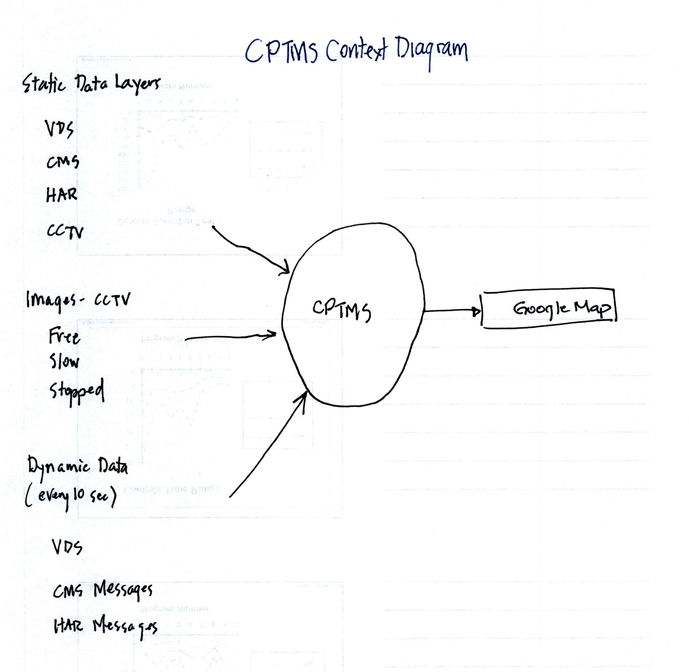
CPTMS_context_diagram.jpg
 (155.8 KB) -
added by jdalbey 7 years ago.
(155.8 KB) -
added by jdalbey 7 years ago.